Updates arrive through the normal WordPress Plugins screen, the same way as any other plugin. Your license key is what makes them appear. This page covers the update itself, what to check afterwards, and what changes if you are coming from an older 1.x version.
Before you update
- Take a backup of your files and database, or ask your host to. This is standard practice for any plugin update, not a warning about this one.
- Check your server meets the requirements. The current version needs WordPress 6.9 or later and PHP 8.2 or later. If you are not sure what your site runs, ask your host or check Tools > Site Health > Info > Server.
- Make sure your license is active. An expired license does not stop your site working, but no new versions are offered until it is renewed.
- If possible, update outside your busiest hours for job applications.
Step 1: check your license key is saved
Go to Jobs > License in your WordPress admin. Your key should be in the License Key field. If the field is empty, paste the key from your purchase email or from your account, then click Save License.
 If you have just renewed, click Sync on the same screen. That refreshes the license straight away instead of waiting for the next scheduled check.
Step 2: run the update
Go to Plugins > Installed Plugins and find Loxo in the list. When a new version is available, WordPress shows a notice directly under the plugin. Click update now.

The update takes a few seconds. Your settings, license key and synced jobs are not touched.
Other ways to reach the same update
From Dashboard > Updates, tick Loxo and click Update Plugins. This is handy when several plugins need updating at once.

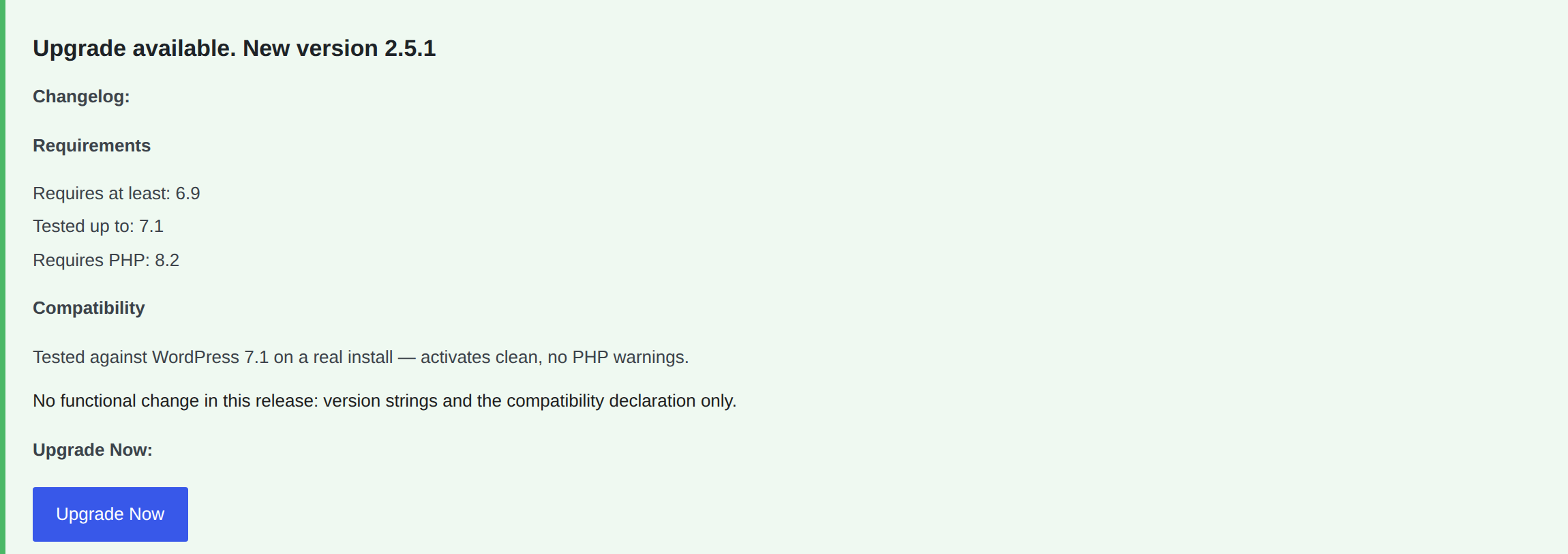
The Jobs > License screen also shows an upgrade panel with the new version number, its changelog and an Upgrade Now button.
 Step 3: check your site afterwards
Five minutes of checking is worth it, especially if you have skipped several versions.
- Open your jobs page and confirm the jobs are listed and the count looks right.
- Use a filter (category or location) and load page two of the results.
- Open two or three individual job pages and check the details and the application form appear.
- Open an old job link you have saved or bookmarked and confirm it still works rather than showing a “page not found”.
- Send a test application and confirm it arrives in Loxo.
- Check Jobs > Settings still holds your agency slug and API token. Nothing about them changes during an update.
Coming from a 1.x version
Upgrading straight from any 1.x release to the current version is a single step. There is no intermediate version to install, and nothing is skipped by jumping several releases. Three changes are worth knowing about before you update.
Job page titles, if you use an SEO plugin
Older versions wrote the page title, canonical URL and robots tag on job pages themselves, overriding any SEO plugin. The plugin now steps aside when Yoast, Rank Math, All in One SEO or a similar plugin is active, so job page titles follow your SEO plugin’s template instead. The Google for Jobs data is unaffected either way. If you prefer the old titles, set Loxo Metadata Output to Always in Jobs > Settings.
Job page layout, if you use a block theme
The plugin now ships default templates for the job archive and single job pages. On a block theme that had no job templates of its own, job pages pick up the plugin layout. A template you have created in the Site Editor, or one provided by your theme, still takes priority. Classic themes are not affected.
Google for Jobs listings
Listings now carry the full formatted job description instead of a short extract, and the company name and website fall back to your site name and address when the company fields are empty. After updating, test one job URL in Google’s Rich Results Test and confirm a job posting is still detected.
One thing to check first: if anyone has edited files inside the plugin folder to customise how jobs look, those edits are replaced by the update. Custom CSS in your theme or the Customizer is safe.
Troubleshooting
| Symptom | Cause | Fix |
|---|---|---|
| No update appears on the Plugins screen | The license key is missing or expired, or WordPress is showing a cached check | Save your key under Jobs > License, click Sync, then go to Dashboard > Updates and click Check again |
| “Update failed” or a download error | The download was interrupted, or the server blocked it | Try again a minute later. If it keeps failing, download the zip from your account and install it manually as described in the installation guide |
| WordPress says the update needs a newer PHP version | The server runs a PHP version below 8.2 | Ask your host to move the site to PHP 8.2 or later, then update |
| The site shows an error right after updating | Usually an incompatible older PHP version, or a half-finished update | Restore your backup, or reinstall the previous version from your account, and contact us with what the error says |
| Jobs are missing after the update | A sync has not run since the update | Go to Jobs > Settings and run a manual sync, then reload your jobs page |
| Job pages have a different title format | Your SEO plugin now controls job page titles | Set Loxo Metadata Output to Always in Jobs > Settings |
Frequently asked questions
Will updating lose my settings or my jobs?
No. Updates replace the plugin files only. Your settings, license key, synced jobs and application history stay where they are.
Do I need to update one version at a time?
No. Updating from any older version straight to the current one is a single step, however many releases you have missed.
What happens if I never update?
Your site keeps working. You miss security fixes, compatibility with newer WordPress versions, and new features. Over time an old version may stop working with a newer WordPress or PHP release.
Can I go back to the previous version?
Yes. Nothing in an update changes your database in a way that cannot be undone. Reinstall the older zip from your account, or restore your backup. Contact us first if you can, so we can look at whatever went wrong.
Related documentation
- License Activation — save your key so updates are offered.
- Installation — first-time install and the manual FTP method.
- Changelog — what changed in each release.