
Almost everything the Loxo plugin does is controlled from a single screen: Loxo Jobs → Settings in WP Admin. This page maps all ten sections of it — every field, what it does and when you would change it. The heading shows your plugin version, worth quoting in any support request. Opening and saving the page needs the delete_private_pages capability, which administrators have and authors or contributors do not.
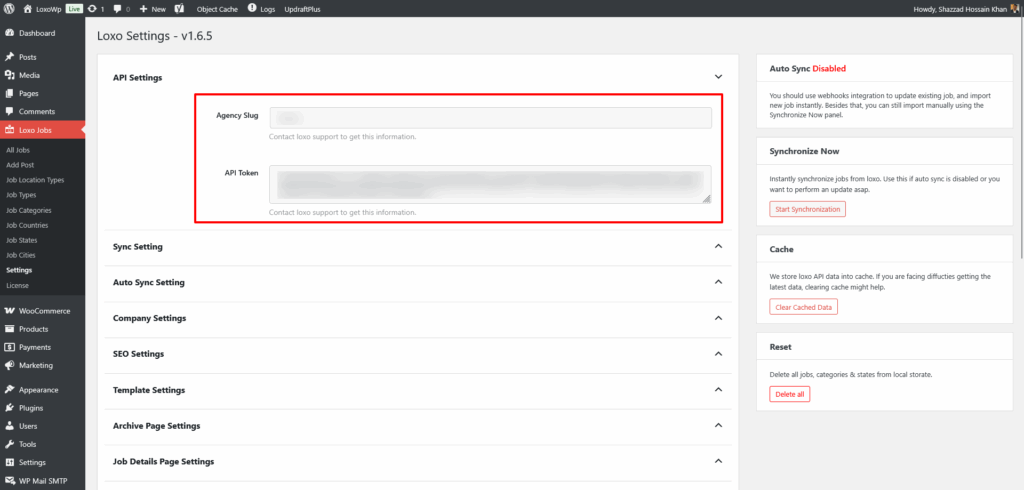
API Settings
Nothing else works until these two fields are filled in. The plugin treats your site as connected only when both an agency slug and an API token are stored, and shows an admin error notice on every screen until then.
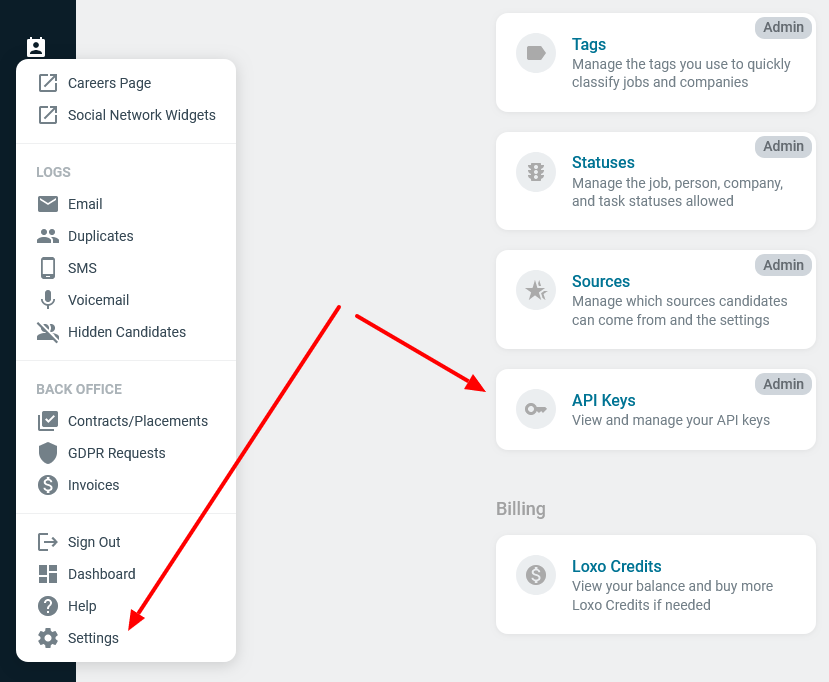
Getting your Loxo API token
- Log in to your Loxo account.
- Go to Settings → API Keys.
- Generate a key and copy the value.
- Paste it into API Token on the Loxo settings screen and save.
If your account has no API Keys section, ask Loxo support to turn on API key access. That is an account-level permission on their side, not something the plugin can change.
Getting your Loxo agency slug
The agency slug is the short identifier Loxo uses for your agency, and the plugin puts it straight into every request it makes — calls go to https://app.loxo.co/api/<agency-slug>/jobs. A wrong slug fails differently from a wrong token, so confirm it rather than guess.
Loxo does not surface it on an obvious settings screen; ask Loxo support, as the plugin’s own help text on both fields advises. If you already use the Loxo API elsewhere, it is the same value that appears in the URL path of those calls.
Sync Setting
The two filter checkboxes here are unticked on a new install. Until you tick them and save, the plugin asks Loxo for jobs of every status, so closed, on-hold and draft roles are imported alongside the ones you want. Set them before your first sync.
- Active Jobs Only — tick it and save to import jobs with Active status only. Left unticked, closed and on-hold roles come across too.
- Published Jobs Only — tick it and save to import only jobs you have published in Loxo. Left unticked, jobs still in draft in Loxo are imported as well.
- Job title source — Title (the internal job title) or Published Name. Switch to Published Name if your team keeps a separate public-facing title in Loxo.
- Update URL on title change? — off by default, so an existing job keeps its original URL however the title changes in Loxo. Turn it on only if the URL must always match the title: the plugin adds no redirect from the old address, so anything already linking to it breaks.
Auto Sync Setting
- Auto Synchronize? — No by default. Set it to Yes and the plugin schedules a WordPress cron event that pulls jobs from Loxo on a repeating interval. You do not need it if you have registered webhooks. See Synchronizing Jobs.
- Auto Sync Interval — minutes between runs. The field is blank on a new install, and a blank interval is treated as one minute, which would start a full sync almost continuously. Always type a number here before setting Auto Synchronize to Yes; around 300 (five hours) is a sensible starting point. Shorter means fresher listings and more API calls. Once enabled, the sidebar panel shows the next scheduled run.
Company Settings
These three fill in the hiring organisation in your job schema. None appear as visible text on your job pages. All three are blank on a new install, and the plugin does not substitute your site name or home URL, so fill them in and save before you check your schema.
- Hiring Company Name — the company name in the job schema. Google treats it as a required field, so while this is blank every job page emits an empty company name and fails validation. Enter your company name and save.
- Hiring Company Url — used as the company
sameAsvalue. While it is blank the schema carries an empty string where a URL belongs. Enter your company or careers-page URL and save. - Hiring Company Logo — the full URL of your logo image, used as the company logo in the schema. Blank until you set it, so add it if you want Google to have a logo to work with.
SEO Settings
- Default job validity (in days) — 180 by default. When a job has no filled date, the plugin adds this many days to the publication date to produce the
validThroughvalue in the job schema. It does not affect whether the job stays visible on your site. - Enable Jobs Sitemap? — generates an XML sitemap of your jobs and adds it to
robots.txt. Leave it off if another SEO plugin already covers custom post types; if WordPress’s own sitemap is active the plugin says so under the field. When enabled, a Sitemap panel with a View Sitemap link appears in the sidebar. - Enable Jobs Feed? — generates a feed of your jobs, for syndicating listings to boards or aggregators that accept a feed URL. When enabled, a Feed panel with a View Feed link appears in the sidebar. Leave it off if nothing consumes it.
- Enable Job View Tracking? — off until you tick it and save. Once on, job pages record a view through a background request and counts appear in the admin job list; while it is off that column stays at zero. See Job View Tracking.
Template Settings
- Filters to Show — which filters appear on the job directory page. None are ticked on a new install, so the directory renders without any filters until you tick the ones you want and save. Keyword, category, state, type, country, city and location type are available. See Template Customization.
- Hide Salary? — hides job salary everywhere on the site. Use it when your Loxo salary data is internal-only.
- Data to display for location? — which pieces make up the location line: address, city, state, country, location type. Fewer pieces read better when all your jobs are in one region; add country once you hire across borders.
Archive Page Settings
These control the job directory listing. Template Customization covers the layout in depth.
- Job Archive Page Slug — blank on a new install; letters and hyphens only. While it is blank the job post type is registered without an archive, so there is no job directory page to visit. Enter
jobs(or any slug you prefer) and save to get one at/jobs/. Individual job pages work either way, so leaving it blank is a reasonable choice if you build your own listing page with the shortcodes instead. - Archive Page Url — a custom destination for the “back to jobs” link on a job page. Leave blank to use the archive page.
- Jobs Per Page — 10 by default; controls archive pagination.
- Pagination Style? — numbered Pagination or a Load More button.
- Hide Job excerpt on Archive page? — drops the short description from each card for a tighter list.
- Job Archive Template — Before Content / After Content — raw HTML printed immediately before and after the archive template. Useful for an intro paragraph or a call to action without touching theme files.
Job Details Page Settings
- Hide Jobs Sharing Buttons? — removes the share links from the job details page.
- Format Job Description — clean-up rules applied to the description Loxo sends. You can balance paragraph tags, remove empty paragraphs, and strip inline styles either from every tag or selectively from paragraphs, list items, strong tags and spans. Reach for this when descriptions pasted into Loxo arrive carrying fonts and colours that clash with your theme.
- Single Job Template — Before Content / After Content — raw HTML printed before and after the job details template.
Job Application Settings
- Enable Application Consent — adds a checkbox candidates must tick before applying. Covered fully in Job Application Form.
- Application Consent Text — the label beside that checkbox; defaults to “I accept the terms and conditions.”
- Application Consent Description — longer explanatory text shown with the consent, for your privacy wording.
- Enable reCAPTCHA v3 — protects the application form from spam and abuse. See Google reCAPTCHA v3.
- reCAPTCHA Site Key and reCAPTCHA Secret Key — your public and private keys from the Google reCAPTCHA admin console. Keep the secret key private.
- reCAPTCHA Score Threshold — the minimum score an application must reach, on a scale of 0.0 to 1.0. The field is blank on a new install, and a blank threshold filters nothing: every submission reCAPTCHA verifies is accepted, however low its score. Enter
0.5and save to get score filtering at all. Lower scores mean higher suspected risk, so raising the threshold blocks more spam but risks rejecting real candidates.
Developer Settings
Both fields are empty by default and most sites should leave them that way. They exist for tuning a sync that times out, or for pulling a small test import.
- Batch Size — how many jobs the plugin requests from Loxo in a single API call, and so how many it handles per background run. The plugin asks for 50 at a time and applies your number only if it is lower than 50, so a larger value changes nothing. Lower it to 20 or 10 if syncs stall on a slow host.
- Max Pages — a cap on how many pages of jobs one sync will queue. Leave it empty to import every job, which is what you normally want. Set it to 1 to pull a single page as a quick connection test before a full import.
Panels around the settings form
The screen also carries action panels that are not settings. Below the form: Webhooks (register, check or delete them, with the callback URL to copy) and Shortcodes (the full list the plugin registers). Down the sidebar: Auto Sync status with the next run time, Synchronize Now to start, pause, resume or cancel an import, Cache to clear stored Loxo API responses, and Reset to delete all locally stored jobs, categories and states.
Troubleshooting
Settings will not save
Both the page and the save that follows it are gated on the delete_private_pages capability, so a custom role that reaches the page without it will have its save rejected. Log in as an administrator and try again. If an administrator also sees no “Settings updated.” notice, a security plugin or firewall is most likely blocking the POST to options.php — the API token and reCAPTCHA secret are the fields such rules catch most often.
No jobs appear after entering the credentials
Saving credentials does not import anything on its own. Run Synchronize Now from the sidebar, or set up Webhooks or auto sync so it happens for you.
If jobs exist in WP Admin but /jobs/ returns a 404, it is permalinks. The plugin queues a rewrite-rules refresh after each settings save and runs it on the next admin page load, so visiting the dashboard once usually fixes it; otherwise open Settings → Permalinks and save. Check Job Archive Page Slug first, though: it is blank on a new install, and while it is blank no archive page is registered at all, so no amount of permalink flushing will produce one.
The API token is rejected
When Loxo answers with 403, the plugin stores the error “Wrong API Token” and repeats it as an admin notice on every screen until a request succeeds. A 404 is stored as “Wrong API Credentials” instead, and that usually points at the agency slug rather than the token — the slug forms part of the request URL, so a wrong one makes the endpoint itself not exist.
Saving clears the stored error. Correct the value, save, run a sync, and see whether the notice returns. If it does, regenerate the key in Loxo and confirm the slug with their support team.
Loxo data looks out of date
Some API responses, such as the country and state lists used by the filters, are cached for a day. Use Clear Cached Data in the sidebar Cache panel, then sync again.
FAQ
Do I need auto sync if I use webhooks?
No. The plugin says so on the field itself. Webhooks update jobs as they change in Loxo, which is both faster and lighter than polling. Keep auto sync off unless you want a periodic safety net.
Can I remove the jobs archive page?
Yes — and on a new install there is nothing to remove, because Job Archive Page Slug starts blank and no archive is registered until you fill it in. If you have already set a slug, clear it and save. Individual job pages continue to work either way, so you can build your own listing page with the shortcodes or blocks.
Which settings affect how Google sees my jobs?
Company Settings and Default job validity feed the JobPosting structured data; Enable Jobs Sitemap affects discovery. Job Schema and SEO goes through it properly.
Related documentation
- Webhooks — an alternative to auto sync for near-instant job updates.
- Available Job Data — see what fields are pulled in from Loxo during sync.
- Installation — getting the plugin onto your site before you configure it.
- Job Application Form — the consent and application settings in depth.