
Your license key connects this site to the update server. Save it once and new versions arrive on the WordPress Plugins screen like any other update. This page assumes you have finished the Installation.
Where to find your license key
The key is in your purchase confirmation email. It is also on the Licenses tab of your account — its own tab in My Account, separate from Downloads, which carries the plugin file but not the key. You can copy it from there at any time without digging through your inbox.
Activate your license
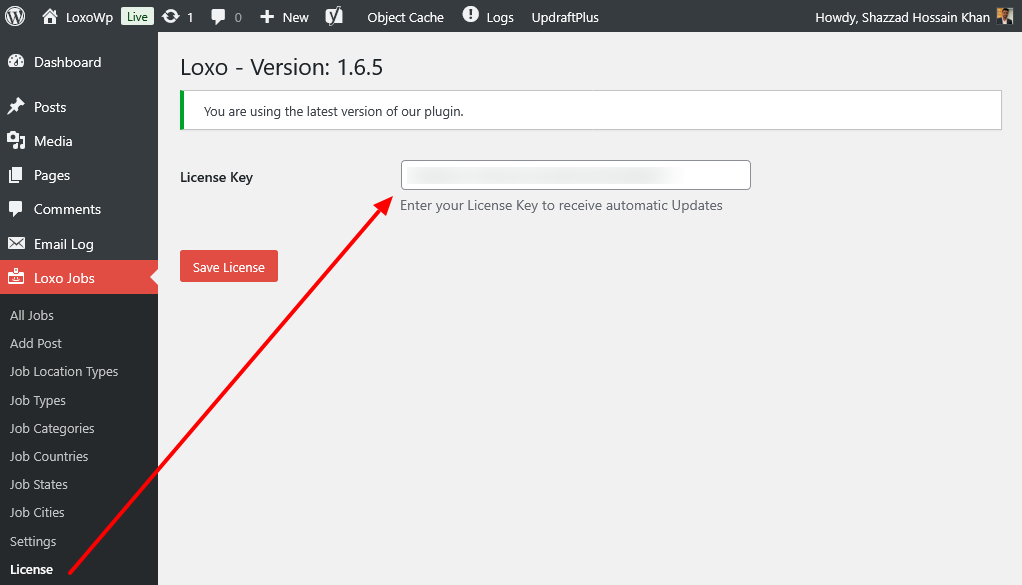
- Go to Loxo Jobs > License in wp-admin. You need to be an administrator — this screen is hidden from other roles.
- Paste your key into the License Key field. Copy it whole and check that no space crept in at either end.
- Click Save License.
- The page reloads with the message “License activated”. Below the form you will see either “You are using the latest version of our plugin” or an upgrade panel with the new version number and changelog.
Once a key is stored, a Sync button appears beside the field. It re-checks the key against the server straight away, rather than waiting for the automatic hourly check.
What the license covers
A valid license gives you automatic updates and customer support for the term of your plan. It does not switch features on or off.
If your license lapses, nothing on your site stops. Job syncing, the job directory, application forms, schema markup, the sitemap, and every shortcode and block carry on exactly as before. What you lose is the ability to install new versions and to open a support ticket. WordPress will still tell you an update exists — it just cannot download it.
Sites, moving a license, and renewal
How many sites a key covers depends on the plan you bought. The single-site plan entitles you to one, and the multi-site plan to five. Each install that saves the key is recorded as an activation on the update server, and your plan’s allowance is shown against that count. See the plan options if you need more room.
To move a license to a different site, deactivate or delete the plugin on the site you are leaving, then enter the key on the new site. Deactivating is what tells the server that install has stopped using the license.
Clearing the License Key field under Loxo Jobs > License and clicking Save License shows “License deactivated”, but it only stops that site receiving updates — it removes the key locally and does not tell the server anything. Use it if you want to stop updates on a site you are keeping; use deactivation if you are moving the license.
At the end of your term the license expires. The License page then shows a renewal notice, normally with a direct link to renew that key. The plugin keeps running; renewing restores updates and support.
Troubleshooting
| Symptom | Cause | Fix |
|---|---|---|
| Saving the key shows an error instead of “License activated” | The key was mistyped, truncated, or belongs to a different product. | Re-copy it from the Licenses tab of your account and save again. A rejected key never overwrites a working one, so a typo cannot cost you a license already saved. |
| “No response from update server” | Your site could not reach w4dev.com — usually a firewall or a host blocking outbound requests. | Try again in a minute. If it persists, ask your host to allow outbound HTTPS to w4dev.com. |
| The key worked, then the page says it was not recognised | The hourly background re-check was rejected by the server. | Your key is kept, not deleted — press Sync to re-check. If the message stays, contact support with the key. |
| Updates do not appear in wp-admin | Update data is cached for about ten minutes, or no key is saved on this site. | Confirm a key is saved, then go to Dashboard > Updates and click Check again, which clears the cache. |
FAQ
Can I use the plugin without entering a license key?
Yes. Every feature works. Without a key the License page tells you when a new version exists but asks you to save your license before it can be installed.
Does a staging or development copy use up a site?
Each install that saves the key is recorded as a separate activation, so a staging site with the key entered counts against your plan’s allowance. If you are close to your limit, leave the key out on staging — every feature still works there without one.
I renewed, but the plugin still says expired.
The plugin re-checks your license once an hour, so it can lag behind a renewal. Press Sync on the License page to refresh it immediately.
Related documentation
- Installation — download, upload and activate the plugin.
- Plugin Settings — connect your Loxo account.
- Synchronizing Jobs — run your first job sync once your license is active.