
After the plugin is configured, the next step is to run your first sync. Syncing imports your jobs from Loxo and stores them in WordPress, so your pages load quickly and your listings stay up to date.
Your site never queries Loxo when a visitor opens a job page. Everything a visitor sees is a WordPress post that a sync put there, which is why this is the part of the plugin worth understanding properly.
What a sync does
A full sync runs in two passes. First it pages through your jobs in Loxo and creates or updates one WordPress job post for each, matched on the Loxo job ID. Then it fetches every one of those jobs again individually, because the full description only comes back from the single-job endpoint — so a newly imported job can briefly show an empty description until its second pass runs.
Along the way the plugin creates the taxonomy terms each job needs — job type, category, city, state, country and a Remote or Onsite location type — and records how many applications Loxo has for the job.
Status is copied from Loxo on every sync. A job whose Loxo status is Active or Open is published; any other status is saved as Pending, which takes it off your site but keeps the post and its URL.
Jobs that have vanished from Loxo are handled the same way. Every published job is marked when a sync starts, each job the API returns clears its own mark, and anything still marked at the end is set to Pending. A sync never deletes jobs — only a job.destroy webhook does that. Because the clean-up happens at the end, a run that is cancelled or stalls halfway leaves closed jobs published until the next complete run.
The three ways jobs arrive
| Method | How it runs | Best for |
|---|---|---|
| Manual sync | You press a button in the settings page | The first import, and after changing sync settings |
| Auto sync | A scheduled full sync at your chosen interval | A dependable safety net that reconciles everything |
| Webhooks | Loxo pushes each change as it happens | Getting a single new or edited job live within seconds |
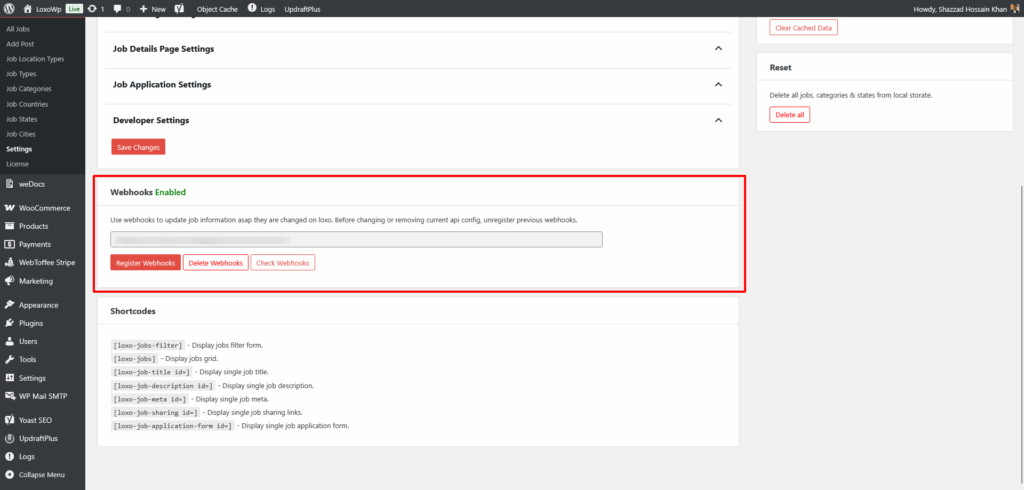
Webhooks and auto sync complement each other rather than compete: webhooks are instant but a failed delivery is never retried, while a scheduled full sync catches what was missed and is the only thing that unpublishes closed jobs. Running both is the usual recommendation — see the Webhooks guide for setup.
Running a sync by hand
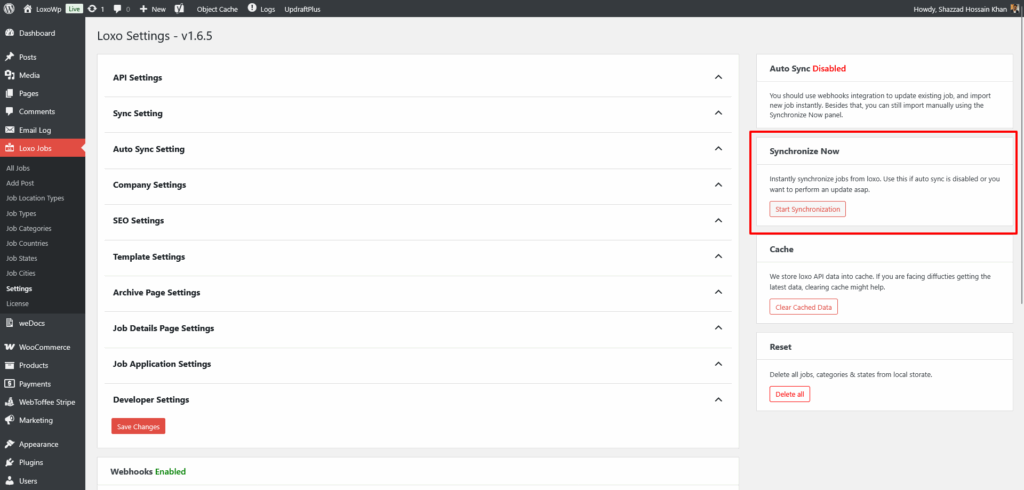
Go to Loxo Jobs → Settings, find the Synchronize Now panel and press Start Synchronization. The sync runs as a background process, so you can navigate away, close the tab or shut your computer and it keeps going. While it runs, the panel reports progress — first the collection page it is on, then how many jobs are left — and the same message appears as a notice on other admin screens.
- Pause stops after the task in progress and keeps the queue. It lifts itself after an hour if you forget to resume.
- Resume picks the queue up where it stopped.
- Cancel discards the rest of the queue. Jobs already imported stay as they are, and since the run never finishes, closed jobs are not unpublished.
Only one sync can run at a time; starting a second while the first is queued is refused.
Syncing on a schedule
In Auto Sync Setting, set Auto Synchronize to Yes and enter an Auto Sync Interval in minutes. Auto sync is off out of the box.
Always type a number into the interval field. It is empty on a new install, and an empty interval is treated as one minute — your site would start a full sync almost continuously. Around 300 minutes (five hours) is a sensible starting point; go shorter only if you are not using webhooks and need changes to land faster.
Once it is on, the Auto Sync box in the settings sidebar shows the next scheduled run. If that time is in the past, read the next section.
Why a scheduled sync can run late
Auto sync is scheduled through WP-Cron, and WP-Cron is not a real clock: WordPress only checks for due tasks when somebody loads a page. On a quiet careers site, a sync due at 2 a.m. may not start until the first visitor arrives hours later. The background queue depends on the same mechanism to restart itself if a batch is interrupted.
The symptom is a next-run time in the sidebar that has already passed, or a sync that only seems to progress while you are clicking around the admin.
The fix is to hand the timing to your server. Add this to wp-config.php:
define( 'DISABLE_WP_CRON', true );Then add a real cron job on the server — most hosts offer this in their control panel — that runs every five minutes, with your own domain in place of example.com:
*/5 * * * * curl -s https://example.com/wp-cron.php?doing_wp_cron >/dev/null 2>&1Controlling how much a sync pulls
Two fields under Developer Settings govern throughput. Both should normally be left empty.
- Batch Size — how many jobs are requested from Loxo in one page of results. Empty means 50, which is also the ceiling: a larger number has no effect. Lower it only if your host times out during an import.
- Max Pages — how many pages of results a sync will fetch. Empty means all of them. Setting it caps the import, and every job the sync does not reach counts as missing, so it is set to Pending at the end of the run.
See Plugin Settings for the other sync options, including the active-only and published-only filters.
Troubleshooting
No jobs appeared at all
Usually credentials. A rejected API token is stored by the plugin and shown as a red admin notice — look for one, re-enter the Agency Slug and API Token under API Settings, then sync again.
If the credentials are fine, check the two filters under Sync Setting. Both are unticked on a new install, so they are not what is holding jobs back — with Active Jobs Only and Published Jobs Only both unticked the plugin requests every job Loxo has, whatever its status. If you have ticked them since, a job that is still a draft in Loxo, or that has been closed, is never requested at all; untick the relevant box and sync again to confirm.
The more common problem with those boxes is the reverse: because they start unticked, a first sync usually brings in closed and draft roles alongside the ones you wanted. Tick them and run the sync again to clear those out.
The sync seems stuck, or Start is greyed out
The plugin treats a sync as running for as long as anything is left in its queue, so an interrupted run reports itself as running indefinitely and blocks new ones.
Load any admin page first — that re-arms the recovery schedule and usually nudges a stalled queue back into life within a minute. If the progress message still does not move, press Cancel Synchronization and start again. A queue that never advances on its own normally means the site cannot make HTTP requests to itself, which is common behind HTTP authentication, an IP allow-list, or an invalid certificate on a staging site; the server cron above works around it.
Some jobs are missing, or moved to Pending on their own
Check Max Pages first: if it is set, everything beyond the cut-off is treated as gone from Loxo and unpublished. Clear the field and run a full sync to bring those jobs back.
Otherwise the jobs really are absent from the API response, usually because their Loxo status is no longer Active or Open, or they are unpublished in Loxo. The posts still exist — filter the Jobs list by Pending to see them.
The sync runs but nothing updates
If the admin shows the new data but public pages do not, you are looking at a cache. The plugin flushes the object cache when a full sync completes, but it cannot clear a page cache or a CDN — purge those yourself.
If even the admin looks stale, use Clear Cached Data in the settings sidebar to drop stored Loxo API responses, then sync again.
One change is suppressed deliberately: renaming a job in Loxo does not change its WordPress URL, so existing links and rankings survive. Enable Update URL on title change in the sync settings if you would rather the URL follow the title.
Frequently asked questions
How long does a first sync take?
It depends on how many jobs you have, since each one is fetched twice — once in a page of 50, then once on its own for the description. The queue works in bursts of about 30 seconds so it never trips a hosting timeout, which makes it steady rather than fast. A few hundred jobs typically finish in several minutes, and you do not need to watch it.
Does syncing twice create duplicates?
No. Jobs are matched on their Loxo ID, so a second sync updates the existing post. As a safeguard, a completed full sync also removes any duplicate job posts sharing a Loxo ID.
What happens if my API token changes?
Syncs stop importing and a credentials error appears in the admin. Your existing jobs stay published — nothing is unpublished on a failed run — so the site keeps working while you paste the new token into API Settings. Run a manual sync afterwards to catch up, and re-check your webhooks, which are registered with the same credentials.
Related documentation
- Webhooks — push changes from Loxo to your site the moment they happen.
- REST API — trigger and monitor syncs programmatically.
- Available Job Data — see what fields are imported during sync.