
The application form is the point where a job listing stops being a page and starts producing candidates. It sits on every single job page by default, collects four details and a CV, and posts them straight into your Loxo account. This page covers what it collects, where you can place it, what an applicant sees when a submission succeeds or fails, and what to check when applications are not arriving.
What the form collects
- Name — free text, required
- Email — required
- Phone — free text, required
- Resume — file upload, required
- Consent checkbox — only appears when you enable it in settings, and is then required too
The fields are fixed. There is no setting for adding, removing or reordering them, and the Loxo apply endpoint only receives name, email, phone and the file.
Name, email and phone are marked required in the browser. On the server the plugin checks the resume and the consent box, so the browser’s own validation is what enforces the other three.
Resume uploads
The plugin puts no restriction on the resume file. It does not limit the file type — the upload field offers the visitor every file on their machine, and no extension or MIME check runs before the file is forwarded. Loxo decides what it will accept. It sets no size limit either, so the ceiling is your server’s PHP configuration: upload_max_filesize and post_max_size. In WordPress you can read the current values under Tools → Site Health → Info → Server. If either is low, large scanned CVs will fail — see Troubleshooting below for what that failure looks like.
Placing the form
On the plugin’s default single job template the form is already there, below the job description and under the sharing links. You only need to place it yourself if you have built your own job page.
- Shortcode:
[loxo-job-application-form]— on a single job page it needs no attributes. Anywhere else, pass the job explicitly:[loxo-job-application-form id="123"], where123is the WordPress post ID of the job, not the Loxo job ID. - Gutenberg Block: Job Application Form, under the Loxo category. The block takes no job ID, so it only renders on a single job page.
With no ID and no job in context, both output nothing at all — no error, no empty box.
What the applicant sees
Every submission ends in a redirect back to the job page, so the outcome is visible in the address bar as well as on the page.
On success the applicant returns to the job with ?applied=1 and the form is replaced by a green box reading “Congratulations!!! You have successfully applied for this job.” The message comes from that URL parameter, so reloading the job page normally brings the form straight back — nothing stops someone applying twice.
On failure they return with ?application-error= and a red box headed “Could not apply for job. Please fix the error before resubmitting.” followed by the specific reason. The form is still there, but it comes back empty — the redirect discards everything, including the chosen file, so the applicant has to fill it in and attach the CV again.
| Message | What happened |
|---|---|
| Please upload your resume. | No file reached the server. |
| Please accept the terms and conditions. | Consent is enabled and the box was not ticked. |
| Security check failed. Please try again. | The form’s security token was stale or missing — usually page caching. |
| reCAPTCHA validation failed. Please try again. | See Google reCAPTCHA v3. |
| Anything else | The message came back from Loxo — it is their API rejecting the application, not the plugin. |
If the job’s WordPress post is not published, no form is shown at all: visitors see a “Job Closed.” notice instead.
Where applications land
The submission is posted, with the CV attached, to the apply endpoint for that job on app.loxo.co, authenticated with the API token from your plugin settings. The application appears against the job in your Loxo dashboard, exactly as if it had arrived through any other channel.
Nothing is kept in WordPress. There is no local copy of the application, no stored resume, and the plugin sends no email of its own — any acknowledgement to the applicant or alert to your recruiters comes from Loxo. If the API call fails, the application is gone; the applicant sees the error and must submit again.
The consent checkbox
If you need applicants to agree to your privacy terms before their CV leaves your site — the usual GDPR requirement — turn on the consent box under Loxo Jobs → Settings → Job Application Settings.
- Enable Application Consent — ticking this adds the checkbox and makes it mandatory, in the browser and again on the server.
- Application Consent Text — the label beside the box. This field is blank on a new install and the form prints whatever is in it, so if you enable consent without filling this in you get an unlabelled checkbox. Enter your own wording and save.
- Application Consent Description — optional small print under the checkbox. Left empty, nothing is output.
Both text fields are stored and printed as raw HTML, so you can link your privacy policy from inside the consent label itself, which is where a candidate expects to find it. Enter it as ordinary markup:
I accept the <a href="/privacy-policy/">privacy policy</a>.The value is printed to the page without escaping, so enter only markup you trust and keep the field to people who would already be allowed to edit your site’s content.
Consent gates the submission only. The acceptance is not recorded in WordPress and is not sent to Loxo, so if you need an auditable record of who agreed to what, keep your consent wording dated and versioned in your own privacy documentation.
Spam protection
The application form supports Google reCAPTCHA v3 for spam protection. It is off until you enable it, and the score threshold needs a value entered by hand or nothing is ever filtered — see the Google reCAPTCHA v3 page for setup.
Application tracking
The plugin tracks job applications from two sources:
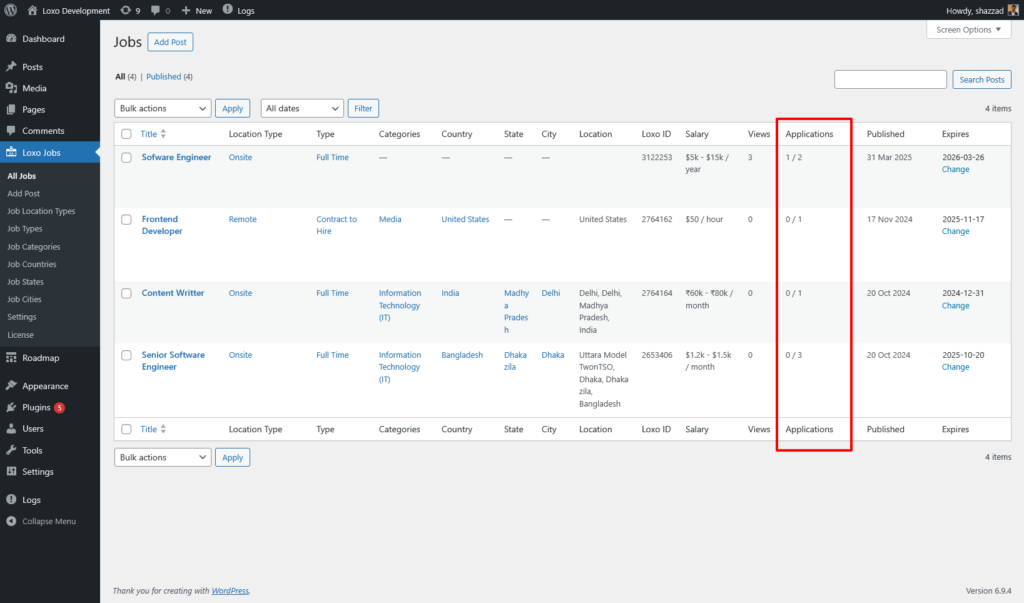
- Onsite — counted by the plugin itself, incremented once for each application that this form successfully hands to Loxo. Failed submissions are not counted.
- Total — Loxo’s own “Applied” count for the job, covering every channel. It is copied over during job synchronisation, so it only moves when the job is next synced.
Both counts are displayed in the Applications column on the admin Jobs list in the format onsite / total. Hover over each number to see which is which. Because they are measured differently and refreshed at different times, they will rarely agree.
Troubleshooting
The form does not appear on the page
Check the job’s status first: an unpublished job shows “Job Closed.” instead of the form. If the page is blank where the form should be, you are almost certainly using the block, or the shortcode without an id, somewhere that is not a single job page — neither knows which job to render and both output nothing. Add id="123" with the WordPress post ID. If your theme replaces the single job template, the automatic placement disappears with it and you have to add the shortcode back yourself.
Submitting reloads the page with no message at all
That is the signature of an upload larger than PHP’s post_max_size. PHP discards the whole request body before WordPress runs, so the plugin never sees the submission and has nothing to report. Raise post_max_size and upload_max_filesize together — post_max_size must be the larger of the two — or ask your host to.
An application arrives in Loxo with an empty or missing CV
A file over upload_max_filesize but under post_max_size is rejected by PHP while its filename still reaches the plugin. The plugin does not inspect PHP’s upload error code, so the application goes through with no file content behind the name. Raising upload_max_filesize fixes it; until then, tell applicants what size you can take.
“Security check failed” on a form the applicant just loaded
The form carries a WordPress security token that expires after about a day. Full-page caching is the usual culprit: a cached job page keeps serving a token minted when the page was first cached, and once that ages out every application is refused. Exclude single job pages from your page cache, or keep their cache lifetime under 12 hours.
Applications are not reaching Loxo
If applicants see an error message you do not recognise, it came back from the Loxo API and describes the real problem. Confirm the API token and agency slug in Plugin Settings are still valid — an expired token fails the apply call as surely as it fails job sync, so if sync has also stopped working, start there. Also check that the job is still open in Loxo — the plugin posts to the apply endpoint whatever state the job is in on their side, and any refusal comes back as the message the applicant sees.
FAQ
Can I add my own fields to the form?
Not through settings. The plugin has no theme template override system either, so building your own form means replacing the single job template through WordPress’s own single_template filter, or rebuilding the page from the shortcodes — both covered in Template Customization. Either route only gets you halfway: the plugin sends name, email, phone and the file to Loxo and drops anything else, so an extra field would be collected and then discarded. Ask candidates for anything further after they apply.
Are applications stored in WordPress?
No. Only the onsite counter is kept locally. Applications and CVs live in Loxo, which keeps your site out of scope for storing candidate data.
Can the same person apply twice?
Yes. The plugin does not track who has applied, and the success message is driven by a URL parameter rather than any stored state, so a fresh visit to the job page shows an empty form again.
Related documentation
- Available Job Data — see what job fields are available for use in and around the application form.
- Google reCAPTCHA v3 — configure spam protection for this form.
- Shortcodes — full parameter reference for displaying the form via shortcode.
- Gutenberg Blocks — display the form using the block editor instead.