
Your license code is emailed to you after purchase. Setting it in the plugin gives you direct access to the latest updates and to support. To activate it, follow these steps.
Activate your license
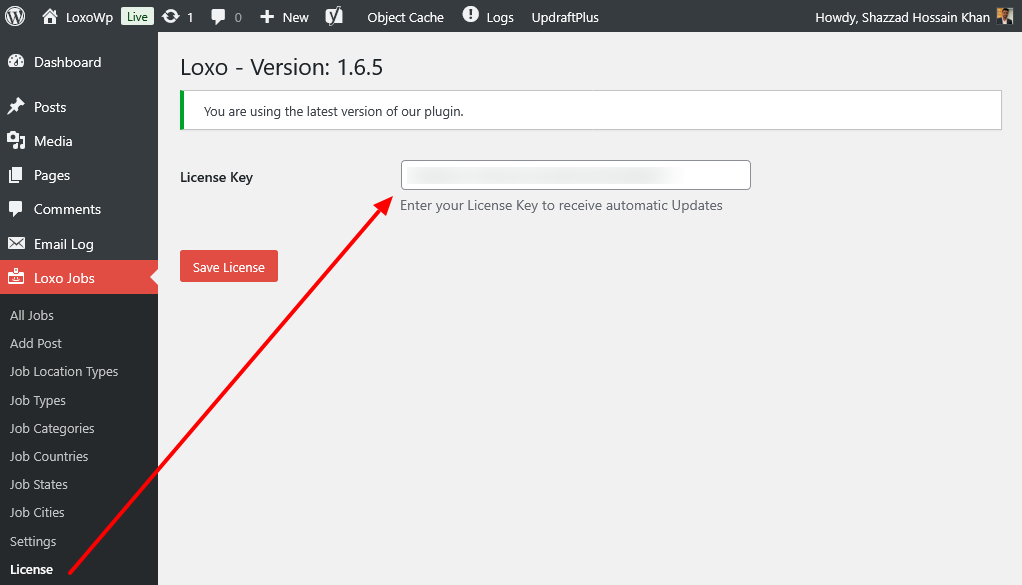
- Go to WP Admin > Loxo > License.
- Enter your license code (sent to your email).
- If the code is valid, the page shows the message “License Updated”.
- Once activated, you will be notified of new updates and can upgrade from the WordPress Plugins page.
Where to find your license code
The code is in your purchase confirmation email. You can also find it on the downloads page in your account.
Troubleshooting
If you see an error instead of “License Updated”, check that the code is copied in full with no extra spaces. Also confirm it has not already been used on the maximum number of sites allowed by your plan.