After the plugin is configured, the next step is to run your first sync. Syncing imports your jobs from Loxo and stores them in WordPress, so your pages load quickly and your listings stay up to date.
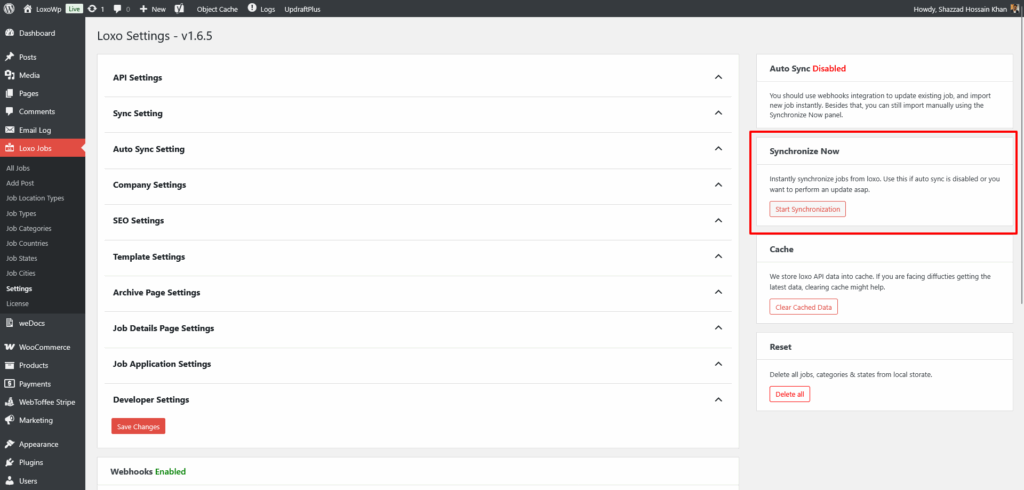
Instant Sync
Click the Start synchronization button to fetch your jobs and store them in the job post type. The sync runs in the background.
You can pause or cancel it whenever you need to. Because it runs in the background, you can navigate away from the page, or even close your site, and it keeps running.
Automatic Sync
You can also let the plugin sync on a schedule, so new and changed jobs are picked up without any manual steps. Turn on auto sync in the settings and choose how often it runs.
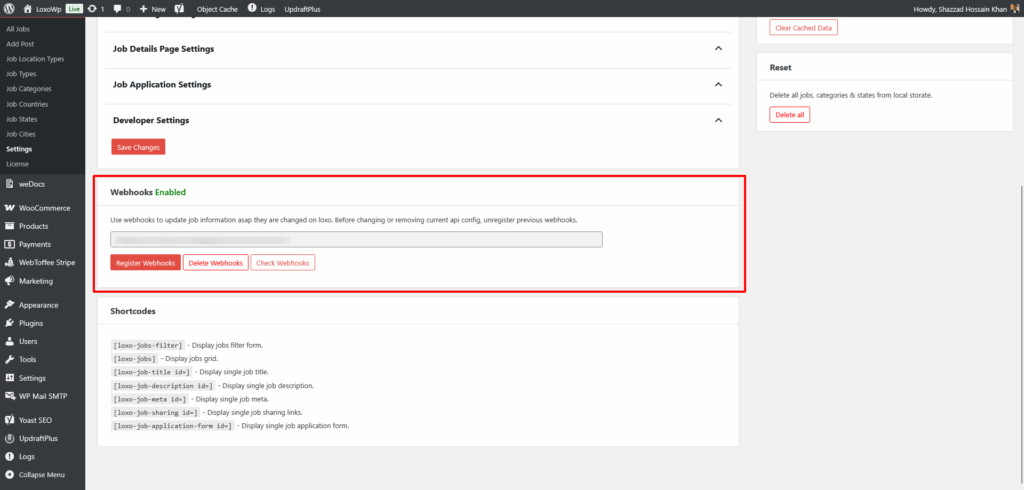
Webhooks
Register webhooks to bring in new or changed jobs instantly. Once registered, Loxo sends a payload to your WordPress site whenever a job is created, updated, or deleted.
For setup details, see the Webhooks guide.